In short
A KDP paperback cover is one wide image: back cover, spine and front cover, plus 0.125″ of bleed around it. Its width depends on the trim size, the page count and the paper, so it changes with every book. This guide explains the numbers KDP checks and shows how to design the cover in the free Wisdom Effect cover creator and download a KDP-ready PDF without a watermark.
On this page
What KDP Means by a Paperback Cover
Amazon KDP prints a paperback from two files: the interior PDF and the cover PDF. The cover is not just the front: it is a single page that wraps around the book, with the back cover on the left, the spine in the middle and the front cover on the right. KDP checks its size against your trim size and page count, so a cover made for another book is rejected.
That is why ready-made templates of a fixed size rarely fit. The spine grows with every page, and a 120-page book needs a different cover than the same book with 300 pages.
The Cover Size: Trim, Spine and Bleed
The full cover width is bleed + back cover + spine + front cover + bleed. Bleed is 0.125″ on every outer edge, so the height is the trim height plus 0.25″. The spine is the page count times the thickness of one page, which depends on the paper: 0.002252″ for white, 0.0025″ for cream and 0.002347″ for premium color.
A 6 × 9″ book of 120 pages on white paper has a 0.27″ spine, so its cover is 12.52 × 9.25″ — 3757 × 2775 pixels at 300 DPI. The KDP spine width calculator and the KDP cover size calculator give these numbers for any book, and the bleed guide explains bleed in detail.
| Trim | Pages | Paper | Spine | Full cover | Pixels at 300 DPI |
|---|---|---|---|---|---|
| 6 × 9″ | 120 | White | 0.27″ | 12.52 × 9.25″ | 3757 × 2775 |
| 6 × 9″ | 300 | Cream | 0.75″ | 13 × 9.25″ | 3900 × 2775 |
| 5 × 8″ | 200 | Cream | 0.5″ | 10.75 × 8.25″ | 3225 × 2475 |
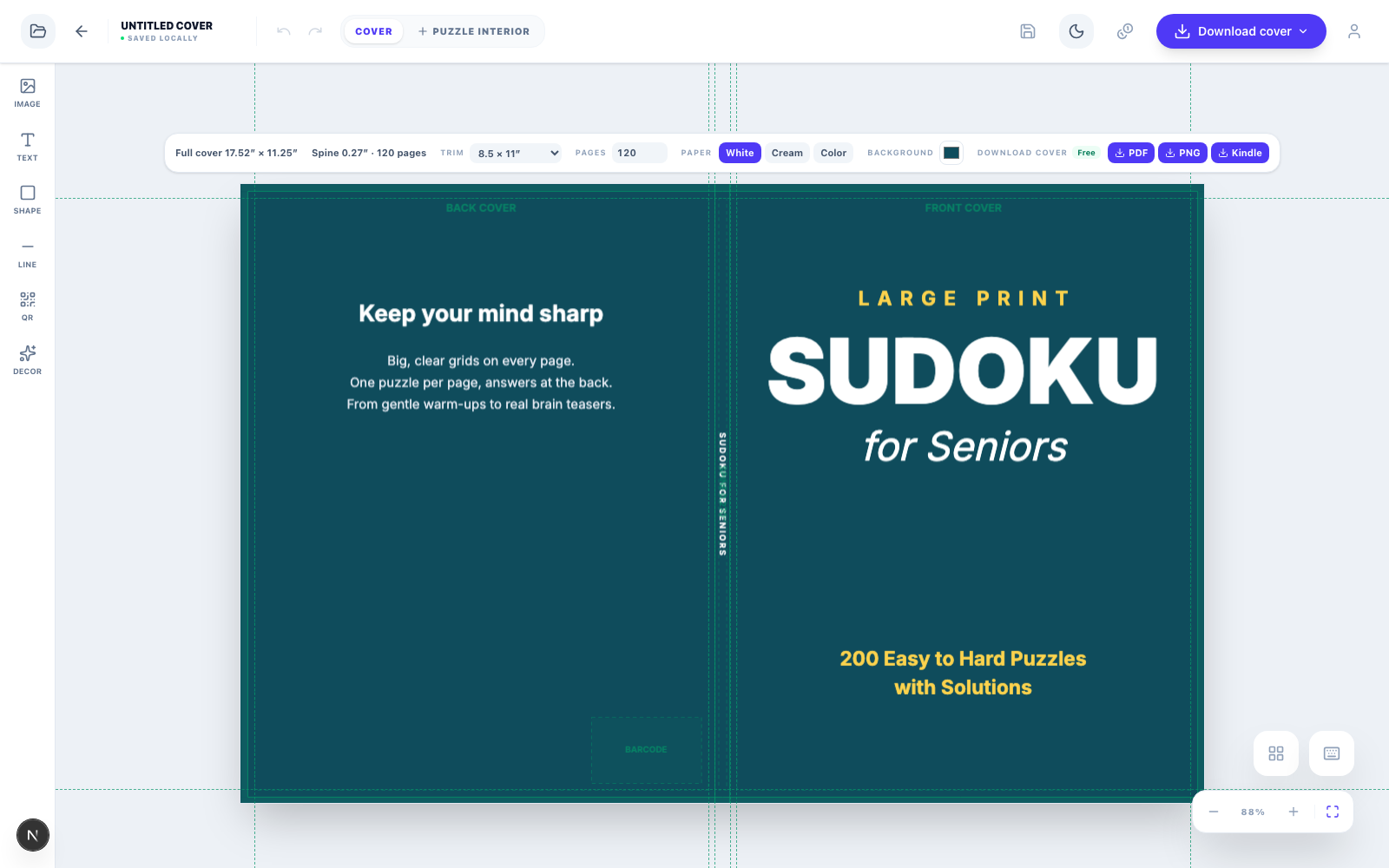
| 8.5 × 11″ | 120 | White | 0.27″ | 17.52 × 11.25″ | 5257 × 3375 |
Safe Zones, Spine Text and the Barcode
KDP trims the printed cover within the bleed, and the cut can move a little. Keep titles, text and faces at least 0.125″ inside the trim line; let only backgrounds and images run into the bleed.
Spine text is allowed only from 80 pages on, and it should stay 0.0625″ clear of each fold. Thinner books keep the spine plain or in the background color. On the back cover, KDP prints the ISBN barcode in the lower right corner, on a white box of about 2 × 1.2″, so nothing important should sit there.
Rules KDP checks
- Text at least 0.125″ inside the trim line.
- Spine text only from 80 pages, 0.0625″ from each fold.
- The lower right of the back cover stays free for the barcode.
Step 1: Open the Cover at Your Size
Open the free KDP cover creator, pick the paper, the trim size and the page count, and click Design your cover free. The editor opens a cover-only project with the back, spine and front at the exact size. You can also start from either calculator: under the result, Design this cover free opens the editor with the same numbers.
The bar above the cover keeps the size editable. Change the trim, the page count or the paper there, and the spine and the full cover resize while your design stays.

Step 2: Design Back, Spine and Front
The tools on the left add text, images, shapes, lines, QR codes and decorations. Titles can use any of the editor’s fonts, and images can be your own uploads or free stock photos. Layers and undo work as in the rest of the editor, and the background color fills the whole wrap including the bleed.
The dashed guides show the trim line, the spine folds, the safe zones and the barcode area. They are there only while you design: the downloaded file has none of them.
Step 3: Download the PDF and Upload It
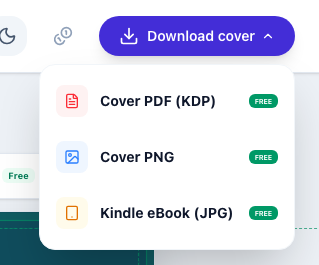
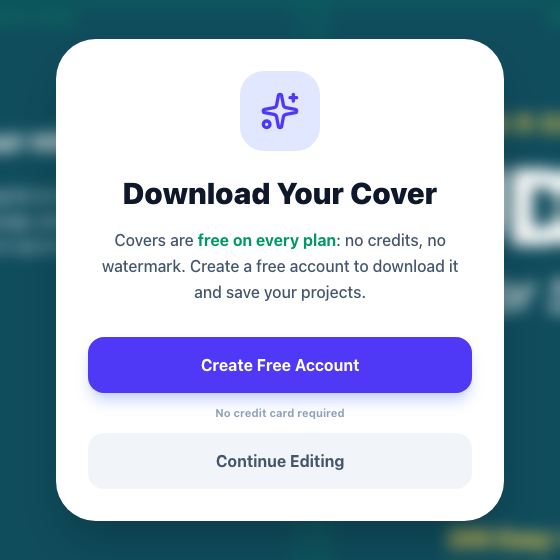
Download cover offers a Cover PDF (KDP), a Kindle eBook cover and a Cover PNG. The PDF is one page of the full cover at 300 DPI, the file KDP asks for; the Kindle cover is the front alone as a 2560 px tall JPG; the PNG is handy for previews, mockups and ads. Without an account you can design as long as you like; downloading asks you to create a free account, which also keeps your projects.
In KDP, open the paperback content, choose Upload a cover you already have and upload the PDF. The KDP previewer then shows the cover around your interior — check the spine text and the barcode area there before you publish.
What Is Free and What Is Not
The cover creator is free forever, on every plan: no credits, no watermark, and you may sell the book with that cover. It works for any paperback — a novel, a journal or a puzzle book made somewhere else.
The interior is a separate product. If you also want the inside of a puzzle book, the Puzzle interior button next to Cover in the editor’s header starts one on the Create page, and the book you pick there takes your cover along; puzzle pages are paid with credits or a plan. Hardcover wraps are not in the cover creator yet; the cover size calculator gives their size and a template.
Key rules
- Size the cover from the final trim, page count and paper.
- Keep text inside the safe zones and the barcode area free.
- Upload the 300 DPI cover PDF next to the interior and check it in the KDP previewer.
Tools for This Guide
Free KDP Cover Creator
Design a KDP paperback cover in the browser and download a 300 DPI PDF, free and without a watermark.
OpenFree KDP Cover Size Calculator
The full cover size with bleed for KDP paperback, hardcover and Kindle eBook, with templates.
OpenFree KDP Spine Width Calculator
The spine width of a KDP paperback from its page count and paper, and whether spine text fits.
OpenFrequently Asked Questions
Is the KDP cover creator really free?
Yes. Covers download without credits and without a watermark on every plan, and you may sell them. Downloading needs a free account, no credit card.
What size is a KDP paperback cover?
Back + spine + front plus 0.125″ bleed on every side. A 6 × 9″ book of 120 pages on white paper needs a 12.52 × 9.25″ cover.
Can I put text on the spine?
Only if the book has at least 80 pages. Keep it 0.0625″ clear of each fold.
Can I use the cover creator for a book I did not make in Wisdom Effect?
Yes. Enter its trim size, page count and paper, and the cover is sized for that book.